30 seconds of preparation before attempting to Login
This guide organizes the steps after understanding the identity field in 87BD Login, Password Recovery, not receiving OTP, new Device, and Locked or Suspended messages. Consider the fields and messages visible on the current Login Screen; do not submit any Login information on this site.
Recall whether you used Mobile, Email, or Username from the old Record. Check Keyboard Language, Country Code, Autofill, leading or trailing Space, and Device Time. Do not change all Settings before an Error Message appears—knowing the first result helps determine which branch to go to.
Asking for Mobile, Email, or Username
Read the Field Label and Example. If Mobile, note how the Country Code is displayed; if Email, check the spelling and Inbox Access; if Username, see if there are rules for Capital Letters or Spaces. Do not copy the Field Structure from another 87BD Domain.
If Masked Contact shows, check if the last few Characters match your Record. Do not provide Password or OTP if the identity is unfamiliar. If unsure about any identity in the old Account, check if there is a Recovery Option instead of increasing Lock with multiple guesses.
Difference between Wrong Password, OTP, New Device, and Locked status
| Message | First Test | Next steps |
|---|---|---|
| Wrong Password | Autofill, Keyboard, Space | Read Recovery Option |
| OTP Pending | Masked Contact, Signal, Spam | Resend once after waiting |
| New Device | Is it your initiated Login? | Read Verification Prompt |
| Locked/Suspended | Exact Message and Time | Stop trying and read Recovery/Appeal |
If Loading or Blank Screen, test Network and Browser one at a time. Do not assume Password is wrong just because there is no Error. If it works in Browser but not in App App Runtime issue Separate them.
Match your Contact and make a Request
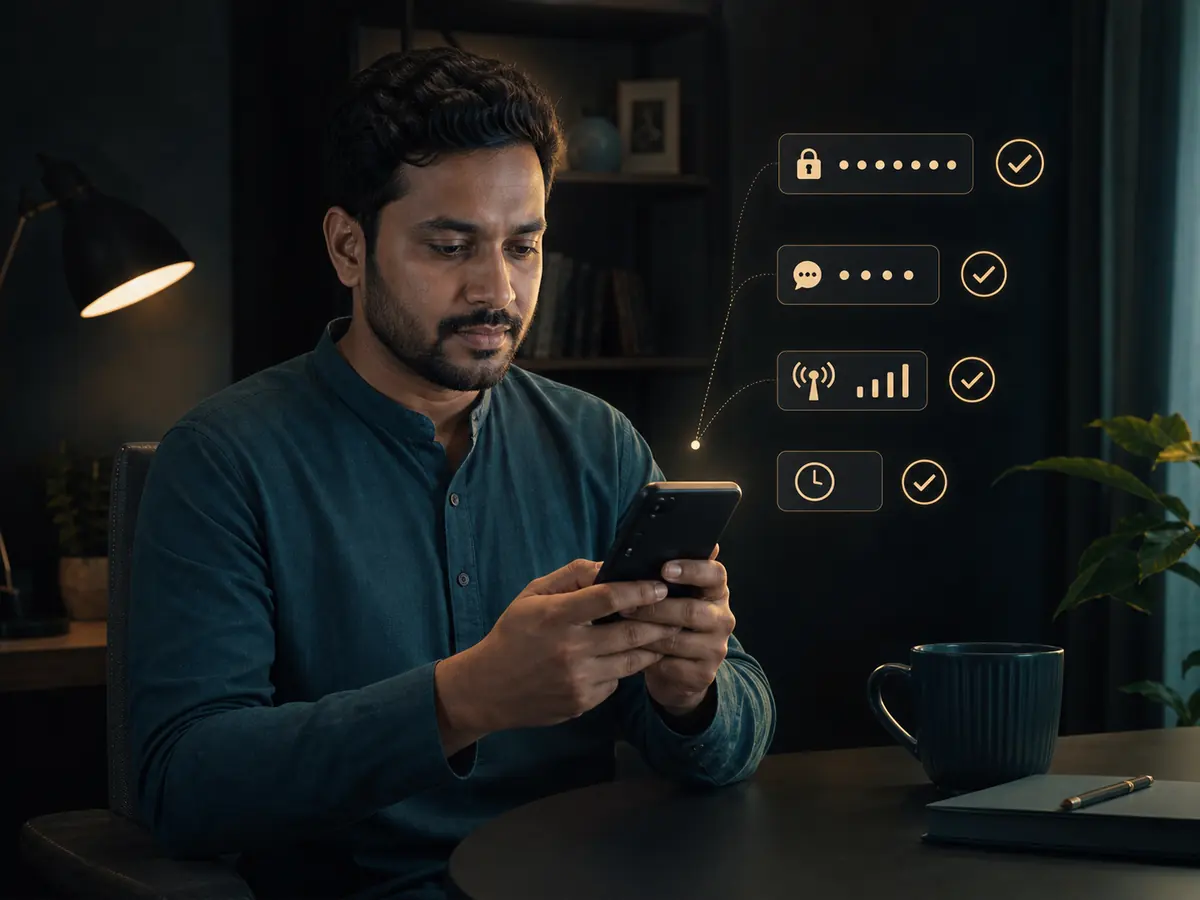
If Recovery Option is truly visible on the current Login Screen, ensure Masked Mobile or Email is yours. Make a Request once and wait; a new Request may invalidate the previous Code. Do not use Recovery Form or Search Ad from another Domain.
Keep the new Password different from the Password used on the previous Site. Use a long but memorable Phrase or Password Manager. If Recovery is successful, it’s not just about regaining Login—also check Registered Contact and Recent Activity.
If Code does not arrive, separate five possibilities
Check Masked Number/Email, Mobile Signal, SMS Block List, Spam Folder, Inbox Space, and Device Time. If there is a Countdown on the Page, wait until it ends and then Resend once. Use only the Code from your most recent initiated Request.
Even if OTP arrives, do not provide Code if you do not start Login. If OTP is successful but the Page returns to Login again, there may be questions about Session, Cookie, or App Loop. You can check for a Clean Session in Browser, but do not delete all Data before keeping Evidence.
Understand if the Verification Prompt is yours
Keep Device Date/Time Automatic, Browser Updated, and Network stable. If New Device Approval goes to another Device, check if it is your old Session. Do not Approve if it is an unfamiliar Location or Device.
If there is an issue only on the new Phone, check the old Session, Stored Password, Country Code, and Verification Method. If the same issue occurs on all Devices, Account Status or Service Availability may be more relevant.
Instead of trying repeatedly, save the Exact Message
Lock and Suspension are not the same. Lock can be temporary after many failed attempts; Suspension may have messages related to Eligibility, Verification, or Policy. Write down the Exact Wording, Date, and Masked Identity from the Page.
If there is a Recovery or Appeal Path, read the Requirement. Do not open a new Account without knowing the Rule for Duplicate Accounts. Do not attempt to bypass Region or Identity Conditions.
Match Identity, Session, and Recent Activity
Check if the Masked part of the Account Name, Registered Contact, visible information of Currency/Region, and Recent Activity match the previous Record. If there is an unknown Session or Transaction, stop new actions. Full steps for Account Security Follow.
Only go to Games or Payment Page when everything matches. If it's a Shared Device, understand the impact of Logout and Saved Password.
Three Login Situations
Wrong Password, but Password confirmed
Username/Mobile/Email Field, Country Code, Autofill and Keyboard. Before making a Recovery Request, ensure the identity matches the correct Account.
OTP arrives, then Login again
Separate the latest Code, Device Time, Cookie/Session, and App Loop. Check for a Clean Session in the Browser; do not request OTP repeatedly.
Old Device works, new one does not
Read New Device Verification, System Time, Browser Version, and Approval Prompt. Match with Registered Contact using the Active Session of the old Device.
Five questions about Login
Which identity should I use to Login?
Look at the current Field Label to understand which is requested: Mobile, Email, or Username, and match with the old Record.
What to do if Wrong Password appears repeatedly?
Stop trying and check Autofill, Keyboard, and Space; if there is a Recovery Option, make a Request.
How many times should I Resend OTP?
Once after the Countdown ends. Multiple Request Codes can confuse the sequence.
What to do if the New Device Prompt is unfamiliar?
Do not Approve; First reaction to an unfamiliar Login Follow.
Should I register a new account on a Locked Account?
No. First read the Lock Message and Recovery/Appeal Path.
If access is not regained, save the error message and time; refer to relevant security guidelines without disclosing sensitive information.
Check account security