Differences between Browser, PWA, Store App, and APK
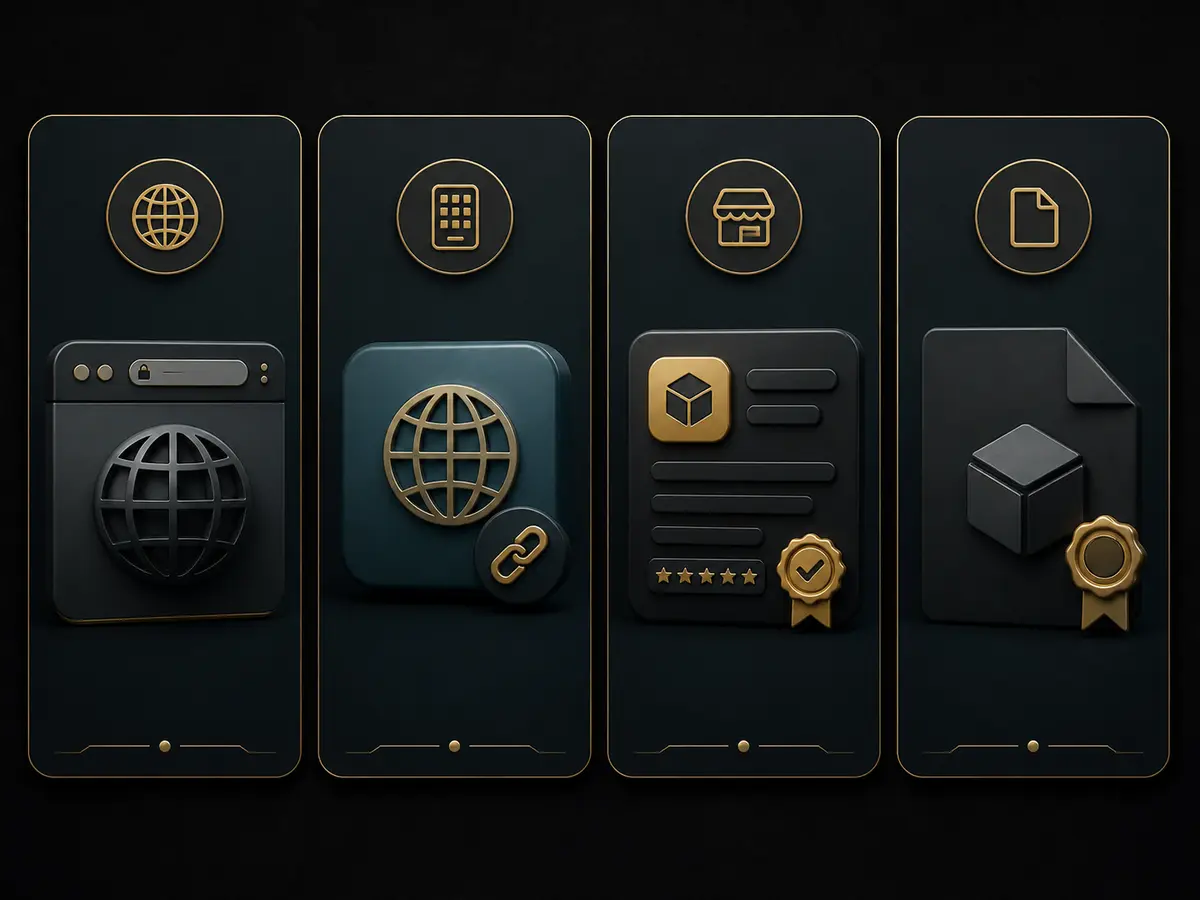
Although the name of Mobile Access is the same, the technology is not. In the Browser, the Address Bar and full Domain are visible, and no Installation File is required. PWA is part of the Website, but can provide an Icon on the Home Screen and full-screen like an App. The Store App should have Store Listing, Publisher, Version, Privacy Information, and Update History. APK is a separate Installation Package; it is necessary to know where the File came from and how it will be updated later.
| Access | Recognition signals | Initial verification |
|---|---|---|
| Browser | Address Bar and Domain | Spelling, HTTPS, Page Title |
| PWA | Home Screen Icon, Website technology | From which Browser it was accessed |
| Store App | Store Listing and Publisher | Package, Version, Update, and Privacy |
| APK | Separate Installation File | Source, Signature, Package, and Permission |
The same Icon or name can be seen in four types of Access. Therefore, before saying “App is opening,” identify at which level the problem is occurring. If the Browser Page does not open, it is a question of Network or Domain; if PWA looks old, it is a question of Cache or Installed Shortcut; if Store App does not update, it is a question of Store Account or System Requirement; if APK does not install, it is a question of File, Signature, Storage, or System Policy.
What is known and unknown about the 87BD App
As of August 5, 2026, the goal is to directly match specific Publisher, Package Name, Version, Store Listing, or Download Channel with 87BD; this Site does not have that information. Therefore, when claims of “Latest APK,” “Official App,” or specific Version arise, they are not assumed to be Brand Facts. The relationship is strengthened only when the Publisher-controlled Page and Store or Package Information support each other.
A digging arcade game Listing published by Rif Trading under the name “87bd” can be seen on Google Play. The existence of the Listing and Publisher Name is visible, but it does not show a relationship with the 87BD Brand's Account, Games, or Payment Service. The same name can create Search Collision; therefore, check the Description, Category, Publisher Website, and Package meanings.
This proof limit does not mean that using Mobile Access is impossible. It means that each path of Browser, PWA, Store App, or APK must verify its identity. This Site does not provide any File and does not approve unknown Files as related.
Why the “87bd” Game on Google Play should be viewed separately
Finding an App with the same name in Store Search is a starting point, not a final decision. Open the Listing and check Publisher, Category, Description, Screenshot, Update Date, Privacy Information, and Developer Contact. If the Description indicates a digging arcade game, while you are looking for a Brand App related to Account Login or Payment, then the mismatch of purpose is an important warning.
Package Name is the technical identity of the Installed App on the Device. Two Apps with the same Display Name may have different Packages. Future Updates should also come from the same Signature and Publisher Path. Do not consider only Search Ads, familiar colors, Icons, or Review Counts as proof of Brand Relationship.
Match Publisher, Package, Version, and Update Path
- Identify the Source.
Note where the File or Listing came from and what the full Domain/Store Name is.
- Match the Publisher.
Check if the Publisher's name is mentioned similarly on any controlled Page of the Brand.
- Check the Package and Signature.
Observe if the Package and Update Signature are changing in Installed App Information.
- Read the Version and Date.
Not just “Latest”; Version Number, Release Date, and Change Note are needed.
- Understand the Update Path.
Know in advance whether the next Update will come from the Store, Website, or again via Manual File.
If any of these five are unclear, do not proceed with Installation by turning off System Protection. If an old Version exists, understand the impact on Data, Login Session, and Rollback before overwriting with a new File.
Correlate Permissions with the task
Camera or File Permission may be justified for specific Document Uploads, but the task should be visible when requesting Permission. Deny if there is no clear explanation for why Access to SMS, Contacts, Accessibility, Device Administration, Call Log, or all Files is needed. Not all Permissions are required just because it is an App Account Guide.
Accessibility and Device Administration are particularly powerful Permissions. They can make it difficult for other Apps to read the Screen, control Actions, or remove the App. Do not enable this Access unless you are sure about the Publisher and the task. After granting Permission once, review the list in Device Settings and disable unnecessary Access.
Distinguish between Crash, Black Screen, Login Loop, and Slow Performance.
If the App closes immediately, check Available Storage, System Version, App Version, and last Update. If there is a Black Screen, there may be issues with Network, Background Restriction, and Web Content Loading. If there is a Login Loop, it may not be an App Screen issue, but rather a problem with Account Session or OTP; then Login assistance Use it.
Make one change at a time. First, reopen the App, then try changing the Network, and later check for Updates. Before clearing all Data or Reinstalling, understand whether there is a Saved Session, Local Record, and Recovery Access. If there is an Error Message, write it down exactly; if not, note which Action caused the problem.
The same work runs in the Browser, but if it does not run in the App, the App Version or Stored Data is more likely the cause than the Account. If the same Error occurs in both Browser and App, check the Account, Service Availability, or Network Condition.
Three checks before and after Update
Write down the Publisher, Package, and Current Version before the Update. Check if the Update Source matches the previous Source. If there is no Change Note, pay special attention to whether new Permissions or System Requirements have suddenly changed.
After the Update, check if the App Name, Package, Permissions, Login Session, and main functionalities are the same as before. If you see unfamiliar Logins or Transactions, do not proceed with Mobile Troubleshooting. Account Incident Response Follow.
Identify the problem according to Access Type
Browser works, Installed App does not
The App Version, Stored Data, Permissions, or System Requirements are more likely the cause than the Account. Write down the Package and Update Source, reopen the App, then make one change at a time. Before Reinstalling, check if there is Recovery Access.
Icon is present, but there is no Store Listing
Check if clicking the Icon brings up the Address Bar or Browser Menu. If it is a PWA, the identity of the Website Source is important. If it is an APK, the relationship is not confirmed without File Source, Package, and Signature.
New Permissions after Update
Read the Change Note and Permission Purpose. Deny Access that is not related to the current work. If the Publisher or Package changes, stop the Update and verify the identity again.
Six questions about App and Mobile Access
Does having a Home Screen Icon mean it is a Native App?
No. A Website added to the Home Screen can also show a similar Icon as a PWA or Shortcut. Match the type using Address Bar, App Information, and Installed Source.
Where is the confirmed Download Link for the 87BD App?
This Site does not provide any Downloads and does not recommend any File until the Publisher, Package, and Channel are confirmed.
If APK Install is blocked, should I turn off Protection?
No. First, confirm the Source, Publisher, Package, Signature, and Permissions. Bypassing the Warning is not an alternative to verifying identity.
What should I do if the App asks for additional Permissions?
Deny SMS, Contacts, Accessibility, or Device Administration Permissions that are not related to the current work and stop the Installation.
What should I do if there is a Login Loop after the Update?
Check the App Version and Session Login Loop and OTP issuesFollow the steps of –
Is the same name on Google Play sufficient proof?
No. A mutual relationship between the controlled Source of Publisher, Package, Description, and Brand is needed.
Keep installation off, use the browser and check for signs of fake pages and account risks.
Read the security guidelines